

Analytics tells you where a click came from. It doesn’t tell you where someone actually heard about you: the podcast, the friend, the ChatGPT answer, the YouTube review. The fastest way to find out is to ask.
In this tutorial, you’ll add a “How did you hear about us?” survey to any WordPress post or page using OpinionCamp, a free poll block for the WordPress block editor. It takes about five minutes, and you don’t need a form plugin, an external account, or any code.
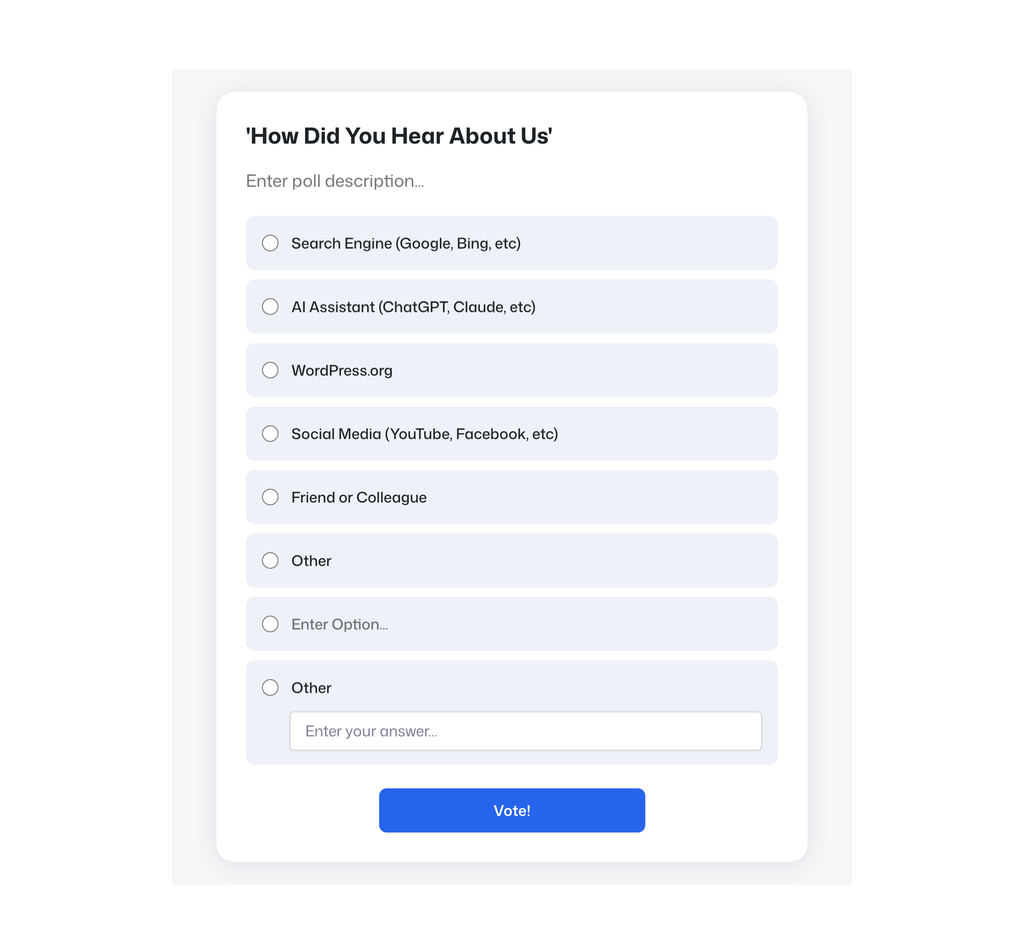
Here’s the survey we’ll build:
Quick Steps
Add a “How Did You Hear About Us” Survey in 5 Minutes
- Install and activate the free OpinionCamp plugin.
- Open the post or page where you want the survey.
- Add the Poll block.
- Click Create new poll.
- Add your question and answer options.
- Turn on custom answers so visitors can type their own source.
- Style the poll from the Styles tab, then publish.
Why add a “How did you hear about us” survey?
A “How did you hear about us” survey (also called an attribution survey) asks visitors to name the source that brought them to you. It fills the gaps your analytics can’t see.
- Dark social and word of mouth: Links shared in DMs, Slack, or WhatsApp show up as “direct” traffic. A survey tells you what that traffic really is.
- AI assistants: More people now find products through ChatGPT, Claude, Perplexity, and Google’s AI answers. Most of that discovery never shows up as a clean referral.
- Offline and audio channels: Podcasts, events, and YouTube mentions rarely leave a trackable click.
- Better marketing decisions: When you know which channels actually bring people in, you know where to spend more time and money.
Why use a poll plugin for this?
A “How did you hear about us” question is one question with a short list of answers. That’s a poll, not a form.
Many site owners reach for a form plugin like WPForms or Gravity Forms. That works, but you’re setting up a full form builder (often a paid one) for a single multiple-choice question, and you still need to build your own results view. We covered this in detail in Stop Using Form Plugins for Polls in WordPress.
SaaS survey tools have a different problem: your visitors’ answers live on someone else’s servers, and you need another account to manage them. If you’re comparing options, see Opinion Stage vs OpinionCamp and our Crowdsignal alternative guide.
OpinionCamp is built for exactly this job:
- Block-native: a Poll block you add like any other block in Gutenberg
- No external service: votes are stored in your own WordPress site, with no third-party account
- Custom answers: visitors can type their own source when your list doesn’t cover it
- Real-time results: voters see results right after they vote
- Free: available on WordPress.org
How to add a “How did you hear about us” survey in WordPress (step by step)
Step 1: Install and activate OpinionCamp
In your WordPress dashboard, go to Plugins > Add New Plugin. Search for OpinionCamp, click Install Now, then click Activate.
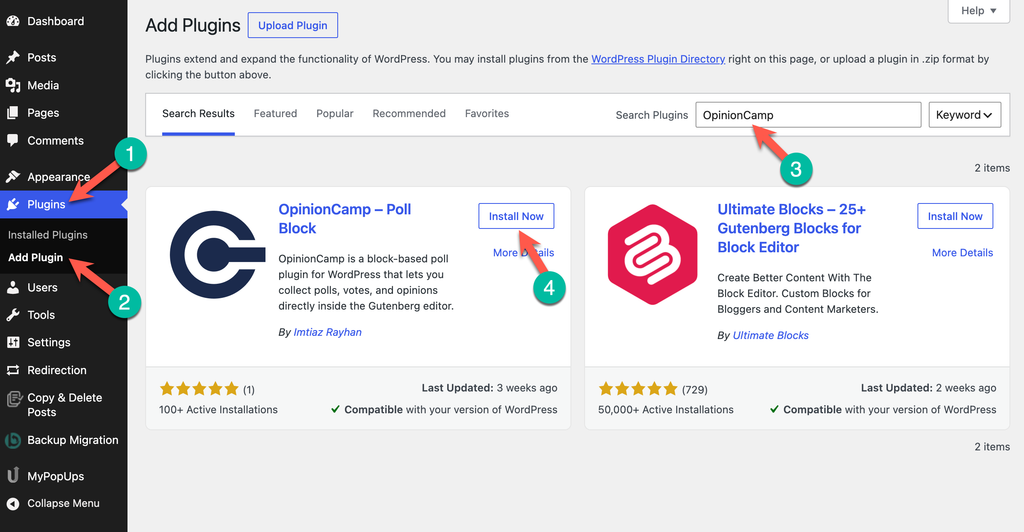
You can also download it from the OpinionCamp page on WordPress.org.
Step 2: Open the post or page for your survey
Open the post or page where you want the survey to appear. A thank-you page, welcome page, or contact page works well (more placement ideas below).
Step 3: Insert the Poll block
Click the + (block inserter) button, type Poll in the search box, and select the Poll block by OpinionCamp.
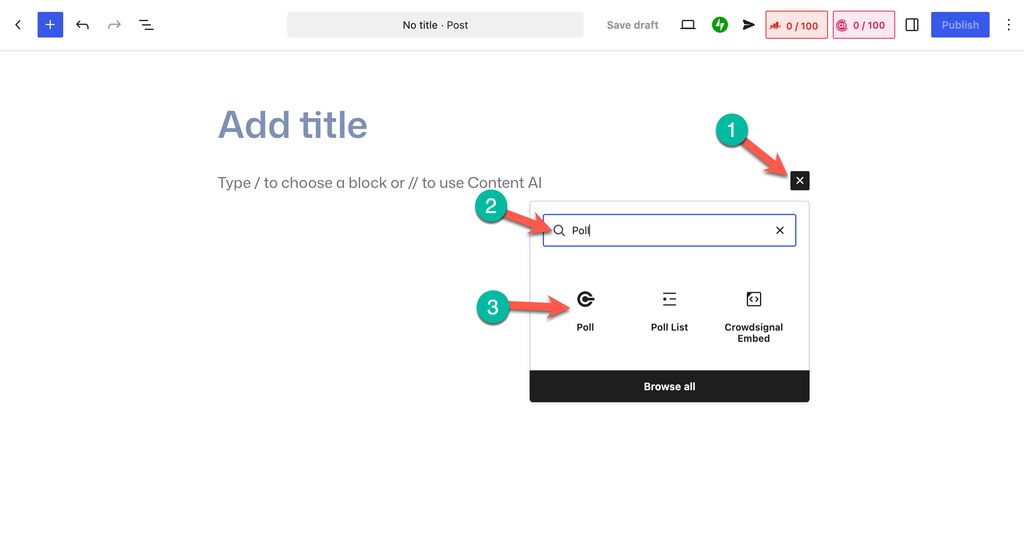
Tip: You can also type /poll on an empty line and press Enter.
Step 4: Click “Create new poll”
The Poll block gives you two options:
- Create new poll: build a fresh poll right inside the editor
- Select existing: reuse a poll you already made
Click Create new poll.
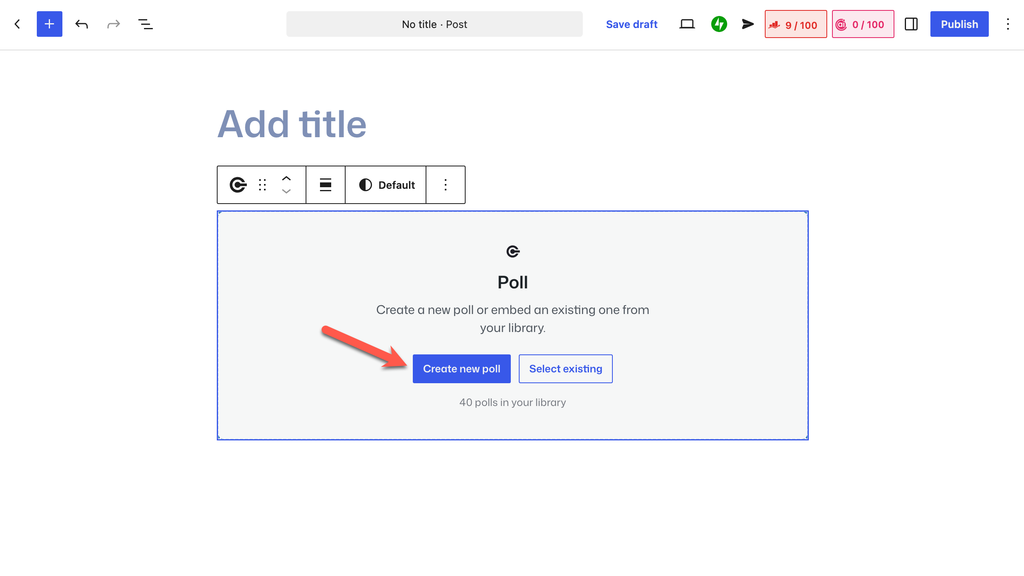
Tip: If you want the same survey on several pages, create it once, then use Select existing everywhere else.
Step 5: Add the poll title and options
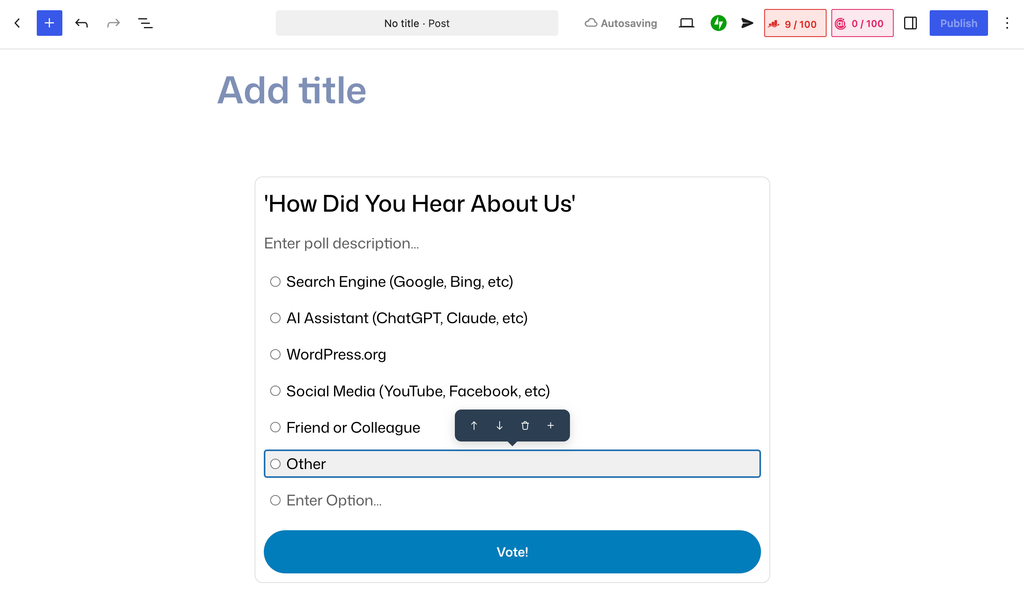
Click the title area and type your question: How did you hear about us?
Then add your answer options one by one. Here are the options we used:
- Search Engine (Google, Bing, etc)
- AI Assistant (ChatGPT, Claude, etc)
- WordPress.org
- Social Media (YouTube, Facebook, etc)
- Friend or Colleague
Hover over any option to move it up or down, delete it, or add a new option below it. You can also add a short description under the title if you want to explain why you’re asking.
Step 6: Allow custom answers
No list covers every source. Turn on the custom answer option in the block settings so visitors can type their own answer.
This adds an Other option with a text box (“Enter your answer…”). Since it creates the “Other” option for you, don’t add a separate “Other” option in Step 5, or you’ll end up with two.
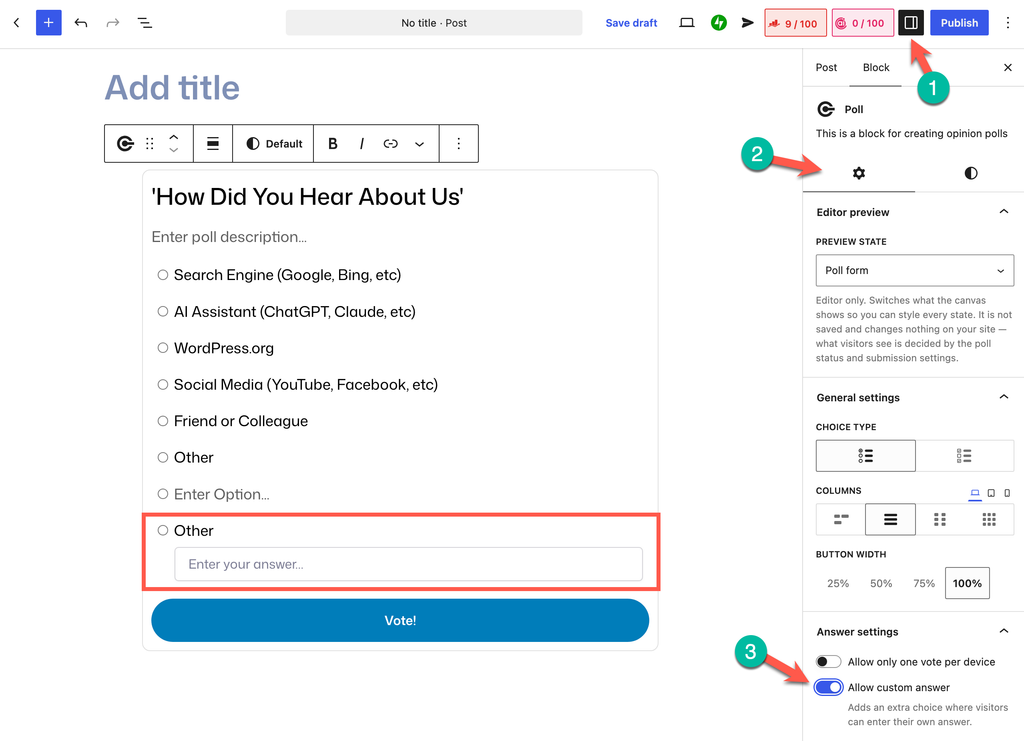
Custom answers are often the most useful part of an attribution survey. They show you channels you didn’t know about.
Step 7: Design the poll from the Styles tab
In the right sidebar, open the Styles tab (the half-filled circle icon).
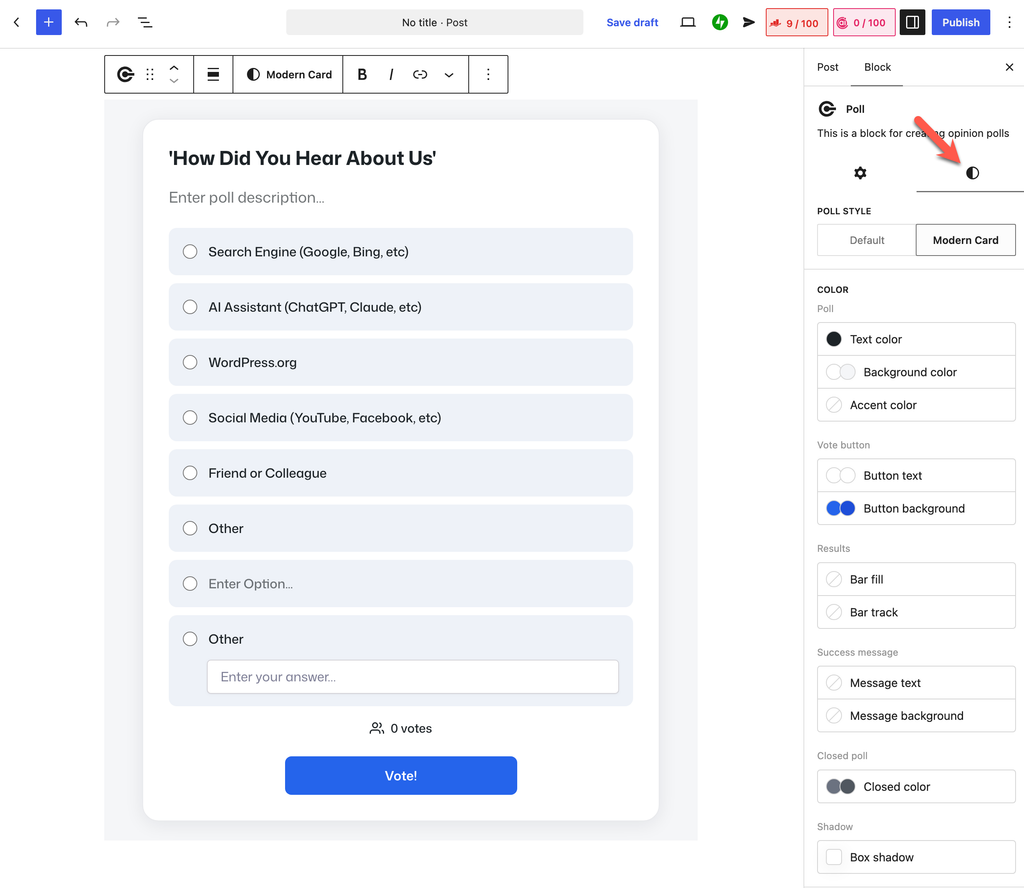
Here’s what you can change:
| Setting | What it controls |
|---|---|
| Poll style | Switch between Default and Modern Card |
| Color | Text, background, accent, vote button, results bars, success message, and closed poll colors |
| Shadow | Add a box shadow to the poll card |
| Typography | Font size for the title, description, and option labels |
| Border | Border width, color, and radius for the card and the button |
| Spacing | Padding and margin for the button, card, and wrapper |
Pick colors that match your brand, then click Publish or Update. Your survey is live.
Tips for better “How did you hear about us” answers
- Keep it to 5 to 7 options. Long lists slow people down and lower response rates.
- Add examples in parentheses. “Social Media (YouTube, Facebook, etc)” is clearer than “Social Media” alone.
- Include an AI Assistant option. If you skip it, people who found you through ChatGPT or Claude will pick “Search Engine” or “Other”, and you’ll miss a growing channel.
- Add channels specific to your business. Running a podcast, a newsletter, or ads? Give each its own option.
- Always allow custom answers. Review them every few weeks. If one source keeps showing up, promote it to its own option.
- Use single choice for cleaner data. Asking for the main source gives you a clear answer. Switch to multiple choice if you want to see every touchpoint.
Where to place your survey
The best spot is wherever people have just taken an action, because the source is still fresh in their mind.
- Thank-you page: after a signup, download, or purchase
- Welcome or onboarding page: for new members or customers
- Contact page: under or next to your contact form
- About page: visitors there are already curious about you
- End of popular posts: to see how readers found your content
Since OpinionCamp is a block, you can drop the survey into any of these in seconds.
FAQ
How do I add a “How did you hear about us” survey in WordPress for free?
Install the free OpinionCamp plugin, add the Poll block to any post or page, click Create new poll, and add your question and answer options. You don’t need a paid form plugin or an external survey account.
Do I need a form plugin to add a “How did you hear about us” question?
No. A single multiple-choice question is a poll, so a dedicated poll plugin is simpler and lighter than a full form builder.
Can visitors type their own answer?
Yes. Turn on custom answers in the Poll block settings, and OpinionCamp adds an “Other” option with a text box.
Where are the survey responses stored?
In your own WordPress site. OpinionCamp doesn’t send votes to a third-party service, and you can manage polls and results from the OpinionCamp dashboard in your WordPress admin.
Can I show the same survey on multiple pages?
Yes. Create the poll once, then add the Poll block on other pages and choose Select existing.
Should the survey be single choice or multiple choice?
Use single choice if you want to know the main source. Use multiple choice if you want to see every channel a visitor came across. OpinionCamp supports both.
Start asking where your visitors come from
A “How did you hear about us” survey takes five minutes to set up and gives you data your analytics will never show. With OpinionCamp, it’s a block in your editor: no form builder, no SaaS account, and no visitor data leaving your site.

Leave a Reply